

友情链接:
Contact us Chinese English Alibaba
DYLINK new technologyNational High-Tech Enterprise
Service Hotline0755 86120002


Service Hotline0755 86120002

分类:KVM switch
描述:
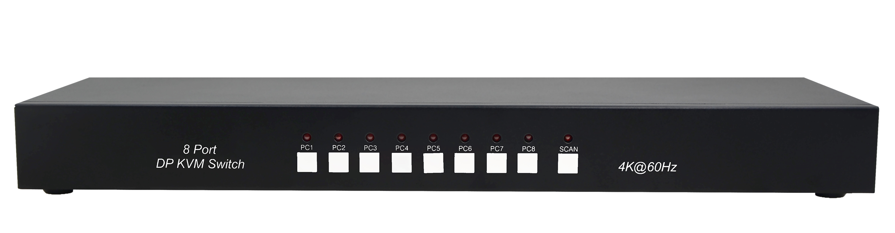
Overview:The SW2801DP 8 Port USB 2.0 DisplayPort KVM Switch allows quick switch between 8 computers from a single USB keyboard and mouse. An integrated USB 2.0 hub allows you to share 2 additional peripherals among attached computers. All keyboard and mouse data transfers via KVM cables for s0755 86120002

T he SW2801DP 8 Port USB 2.0 DisplayPort KVM Switch allows quick switch between 8 computers from a single USB keyboard and mouse. An integrated USB 2.0 hub allows you to share 2 additional peripherals among attached computers. All keyboard and mouse data transfers via KVM cables for seamless response. DisplayPort 1.2,resolutions up to 3840x2160 @60Hz.The SW2801DP setup is easy,simply plug the cables into their appropriate ports . There is no software to configure, no installations, and no incompatibility issues. In addition, the SW2801DP allowing it to work on multiple OS platforms including:Windows, Linux, and Mac.
Features
n Share keyboard, mouse, and DisplayPort display between four DisplayPort equipped computers
n Full plug-and-play support with USB keyboards, mouse, and connected peripherals.
n Integrated 2 port USB 2.0 hub, fully compliant with USB 2.0 specifications
n DisplayPort 1.2a,supports a maximum resolution of 3840x2160@60Hz
n Hotkey and push-button switching
n OS independent - No driver or software required
n Supports DDC2B for monitor detection
n Multiplatform support :Windows, Linux and Mac
n HP、DELL、IBM mouse and keyboard compatable
n 1 x DisplayPort KVM Switcher
n 1 x Power Adapter
n 1 x User’s Manual
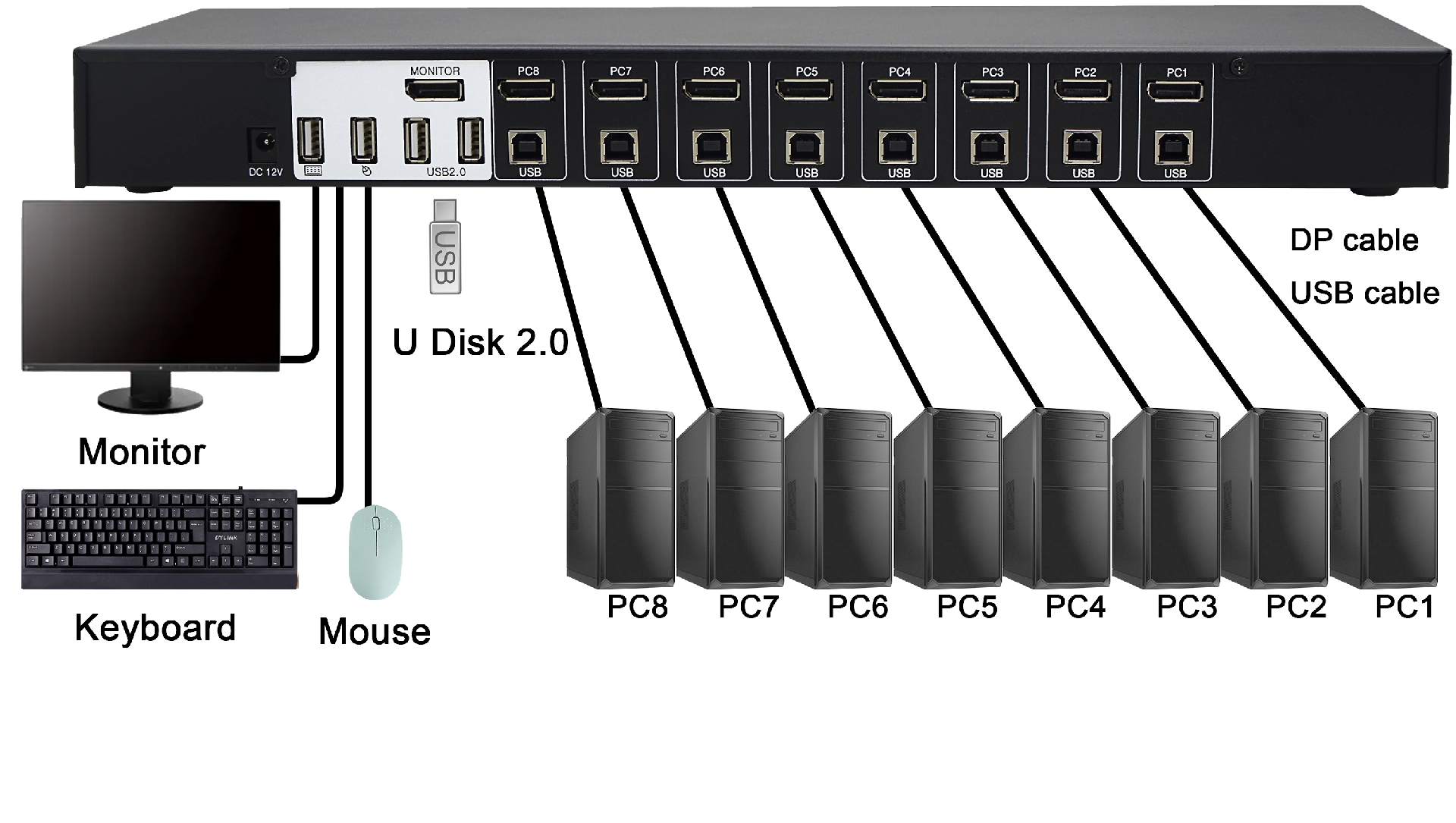
① Make sure that all your computers and peripherals are turned off.
② Connect your DP monitor,USB keyboard,and USB mouse to the corresponding ports on the KVM switch.
③ If need,connect others USB devices to the ports on the KVM switch labeled “USB HUB”.
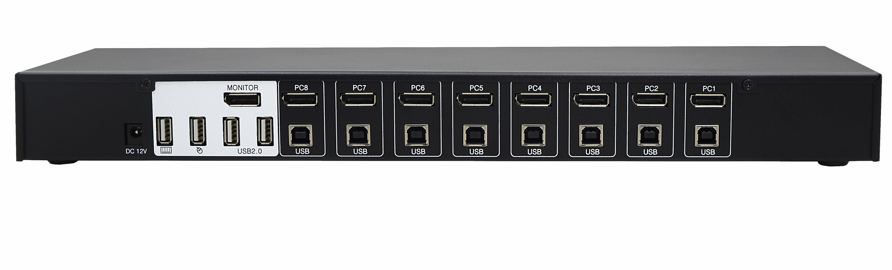
④ Connect each of your PCs to one of the numbered PC ports on the back of the Switch using USB cables and DisplayPort cables.
⑤ Power up the KVM switch.
⑥ Turn on your connected computers.
LED
Normally,a LED lights to indicate its corresponding port is on but not select; a LED is off to indicate its corresponding port is off;a LED flashes to indicate its corresponding port is the one that has the KVM focus.
Push Button
Pressing the button cyclically through all the ports.
Keyboard Hot Keys
You can select one of two PCs by pressing the Scroll Lock key twice and then pressing 1~8 number keys and last pressing Enter key.
[Scroll Lock]+ [Scroll Lock]+ N(N=1~8) +[Enter] -> selects a computer connected to the PC port N.
Note:The operation must be finished within 3 seconds.
Auto Scan Mode
The SW2801DP's Auto Scan feature automatically switches between the two PCs at regular 10 seconds intervals so that you can monitor their activity without having to take the trouble of switching yourself. To invoke Auto Scan Mode, press the Scroll Lock key twice and then pressing ‘s’ key and last pressing Enter key.
[Scroll Lock]+ [Scroll Lock]+ ‘s’ +[Enter] -> Auto Scan Mode.
Note: The operation must be finished within 3 seconds.
Note: While Auto Scan Mode is in effect, none of the other keyboard keys will function. You must exit Auto Scan Mode in order to use the console for anything else.To get out of Auto Scan Mode, Press any key .The port that was currently active at the time scanning stopped remains active.
SW2801DP | |
Computer Connections | 8 |
Host Connectors | 8x DisplayPort Female;8x USB Type B female; |
Console Interfaces | 1x DisplayPort Female; For mouse/keyboard:2x USB Type A female; For USB Hub: 2x USB Type A female; |
DisplayPort Specification | V1.2 |
Maximum Digital Resolutions | 3840 x 2160@60Hz |
USB Specification | V2.0 |
LED Indicators | 8 |
Port Selection | Push Button and Hotkeys |
Power Supply | DC12V/1A |
 DYLINK new technology
 0755 86120002
 liyj@dayapc.com
 13316531915
 West 2nd Floor, Building B, No. 91, Ma Hom South Road, Ma Hom Community, Xili Street, Nanshan District, Shenzhen
  公众号二维码
公众号二维码
业务主管
业务经理
业务经理
业务经理
售后